Take your favorite live sports, news, and movies anywhere with IPTV iPhone Australia. Learn how to configure Apple iOS devices with certified media players, optimize data consumption over 5G networks, and cast seamlessly to home screens via AirPlay.
Apple devices are equipped with industry-leading OLED Super Retina XDR displays and hardware-accelerated HEVC media decoders. Streaming high-frame-rate television broadcasts on an iPhone delivers punchy colors, deep contrast, and smooth 60fps action for fast-moving sports.
Whether riding the train in Sydney, sitting at a cafe in Melbourne, or relaxing on Queensland beaches, you can stay connected to every match. Learn more about official mobile capabilities on the Apple Australia iOS platform page, and monitor live wireless transfer rates with Speedtest by Ookla.
AusLiveTV delivers optimized mobile stream profiles that adapt instantly to changing cellular reception across Telstra, Optus, and Vodafone networks.
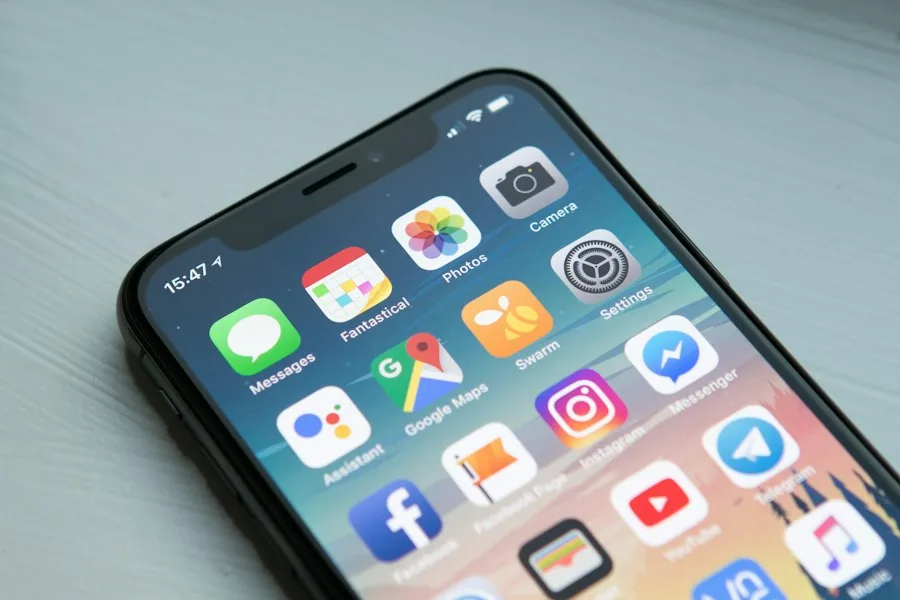
Choose the right media player from the official App Store based on your viewing preferences.
The most widely recognized client for iOS. Offers straightforward Xtream Codes API login, master search, and built-in catch-up TV navigation.
A veteran power-user app with support for multiple M3U playlist sources, embedded subtitle rendering, and custom XMLTV EPG offsets.
Modern SwiftUI interface designed specifically for iOS and iPadOS with native Picture-in-Picture and iCloud sync across devices.
Follow this straightforward guide to get your channels running in under three minutes.
Open the iOS App Store on your iPhone. Search for Smarters Pro or your preferred media client and tap Get.
Launch the app on your home screen. Agree to user terms and allow local network permissions for AirPlay connectivity.
Select the Xtream Codes API option. This delivers automatic folder categories, channel logos, and program descriptions.
Input any profile name (e.g., AusLiveTV), followed by your assigned Server URL, Username, and Password. Tap Add User.
Go to player settings and enable Background Audio and Picture-in-Picture to keep watching matches while checking messages.
Streaming high-definition video over 4G and 5G connections can consume significant data allowances if left unmanaged. AusLiveTV streams feature adaptive compression algorithms that save bandwidth without degrading picture sharpness.
When watching live sporting events on the go, you can toggle between Full HD (1080p 50fps) and Standard HD (720p) within the player. This simple adjustment reduces data consumption from roughly 3GB per hour down to 1.5GB per hour, preserving your monthly mobile plan allowance.
Additionally, utilizing Low Data Mode in iOS settings prevents background App Store updates and cloud backups from competing with your video stream during crucial match moments.
Get answers to common queries regarding iOS setup, AirPlay casting, and cellular playback.
Yes. Tap the AirPlay icon in the upper corner of your media player screen and select your Apple TV or AirPlay 2 compatible television to enjoy instant big-screen viewing.
Yes. Modern cellular networks across Australia offer download speeds far exceeding the 15 Mbps required for crystal-clear HD streaming, ensuring smooth playback on public transport or outdoor locations.
Visit our free trial registration page, complete the brief form, and your Xtream Codes credentials will be generated immediately for instant entry into your iOS app.
Access 10,000+ premium live channels and every major sports match right on your Apple iPhone.